
Instagram Message Requests Not Showing? What to Check
Instagram message requests not showing? Check message controls, Hidden Requests, Limits, restricted accounts, notifications, and Account Status.
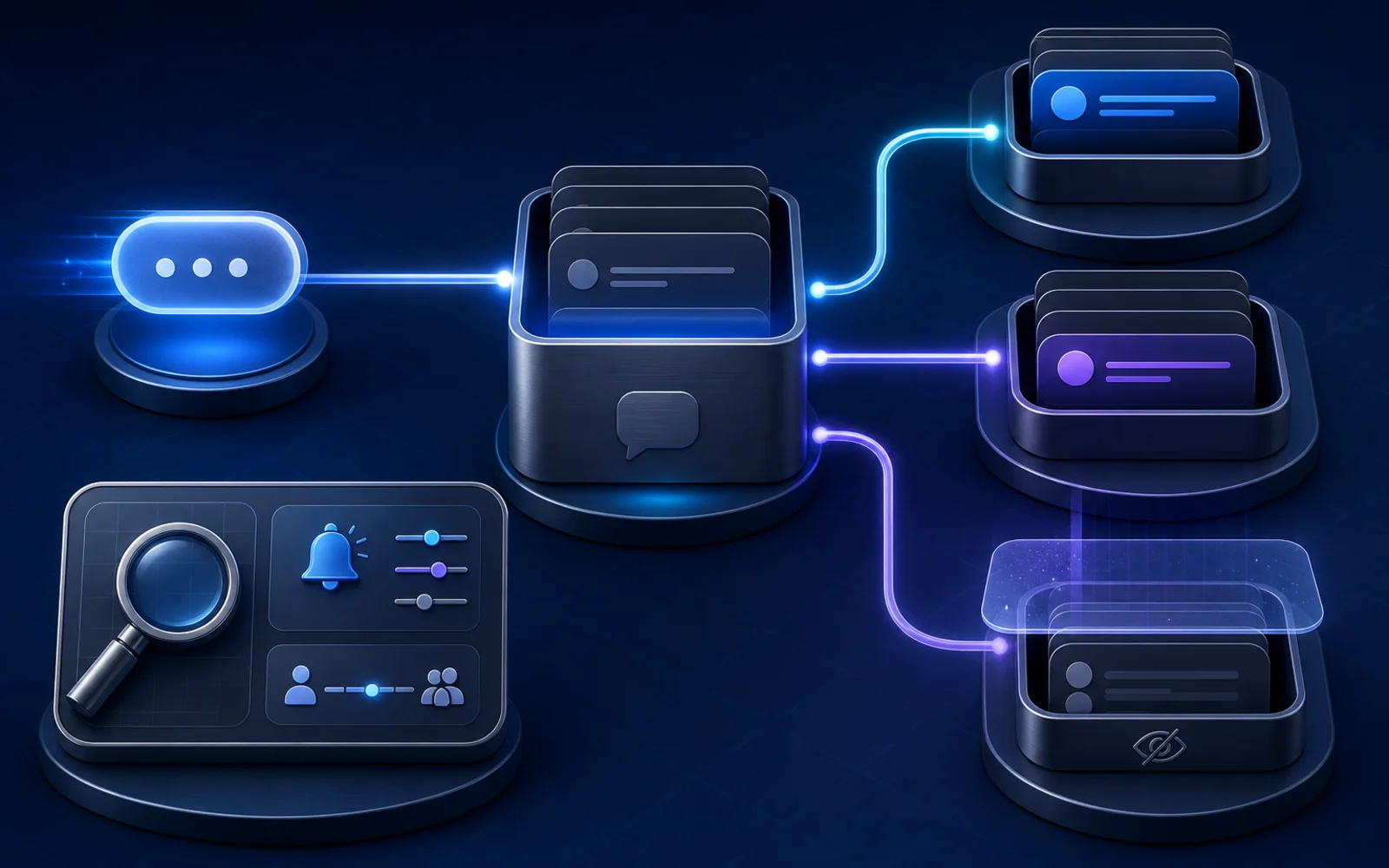
A prospective client says, “I sent you a DM yesterday.”
You open Instagram and see nothing in the main inbox. There is no notification, no visible request, and no obvious error.
Did Instagram delete it? Did your account stop receiving messages? Did a keyword trigger fail? Or is the message sitting in a folder or filter you rarely open?
The useful answer starts by separating five different events:
- the sender was allowed to create a message request
- Instagram accepted the request
- Instagram placed it in a visible or hidden inbox
- Instagram notified you
- a connected third-party tool received the event
Those are not the same thing. This guide walks through them in order so you can locate a missing request—or document a real failure—without changing every account setting at once.
Source check: This guide was verified against Meta and Instagram documentation available on August 10, 2026. Settings, labels, and availability can change by account, device, age, and region. Follow the current controls shown inside your account.
The short answer
If Instagram message requests are not showing, check these places before assuming the message vanished:
- Messages and story replies → Message requests. Confirm the sender's audience category is allowed to send requests.
- Requests. A non-follower's first message may wait here until you accept it.
- Hidden Requests. Instagram may place filtered, unwanted, or custom-word-matched requests here without notifying you.
- Hidden Words. Review both automatic filtering and your custom words, phrases, numbers, and emojis.
- Limits. An active limit can hide requests from non-followers, recent followers, or other selected groups.
- Restricted and blocked accounts. Restriction moves chats into Requests; blocking can prevent message delivery.
- Notifications and Sleep mode. The message can exist even when the phone stays silent.
- Account Status, app troubleshooting, and connected-tool delivery. Use the failure location to choose the correct path.
Instagram's message-request controls let an account decide whether requests from different groups go to the Message Requests folder or are not received. Instagram also says a request generally must be accepted before it appears in the normal Chats list.
That makes the first question simple: is the message missing from Instagram itself, or only from the place where you expected to see it?
First identify which layer failed
Use observable evidence instead of calling everything a “DM glitch.”
| What you observe | Most likely layer to inspect first | What it does not prove |
|---|---|---|
| Sender cannot create a request or sees a connection invitation still pending | Recipient message controls, account relationship, or message-invite state | The recipient's entire inbox is broken |
| Sender sees the message, but recipient sees nothing in Chats | Requests, Hidden Requests, Limits, Restrict, Block | Instagram permanently deleted it |
| Message appears only in Hidden Requests | Hidden Words, Limits, or Instagram's filtering | The sender violated a rule |
| Message is in Instagram, but there was no alert | Instagram notifications, device notifications, Sleep mode, hidden-request behavior | The message was never delivered |
| Message appears in Instagram but not a third-party inbox | Connected-tool permissions, authorization, routing, or event delivery | Native message requests are disabled |
| Messaging is listed under Features you can't use | Account Status or an account-specific restriction | Every missing message has the same cause |
| Multiple unrelated accounts fail on the same app/device | App, connection, device, or service problem | One sender was blocked |
One screenshot from one side is not enough to distinguish these states. A reproducible test needs evidence from both sender and recipient.
The eight-step missing-message audit
1. Run one controlled sender test
Use a separate Instagram account you can observe. Ideally, choose an account that does not follow the recipient so you are testing the actual request path.
Before sending, record:
| Test detail | Record |
|---|---|
| Recipient handle | |
| Sender handle | |
| Sender follows recipient | Yes / No |
| Recipient follows sender | Yes / No |
| Previous accepted chat | Yes / No / Unknown |
| Sender restricted or blocked | Yes / No / Unknown |
| Date, time, and time zone | |
| Instagram app and device |
Send one plain-text message that is easy to identify, such as:
Inbox test — August 10 at 2:15 p.m. ET
Do not begin with a link, repeated emojis, a voice note, or several messages. Meta's current messaging-safety explanation says a person messaging someone who does not follow them first sends an invitation to connect. That invitation is text-only, and the sender cannot keep sending additional requests until the recipient accepts. See Meta's explanation of Instagram message-request invitations.
Capture the sender's screen after sending. Then check the recipient's Chats, Requests, and Hidden Requests without relying on a push notification.
2. Review who is allowed to send message requests
In the Instagram app, open your profile, then the menu. Under How others can interact with you, open Messages and story replies, then Message requests. The exact labels may vary.
Instagram's message-request documentation says you can choose whether requests from people on Instagram go to Message Requests or are not received.
Do not inspect one master switch and stop. Review every audience category the account displays. A coach may want to hear from non-followers while still limiting group invitations or other request sources.
Create a record instead of changing settings from memory:
| Message audience shown in your app | Current setting | Intended setting | Changed? |
|---|---|---|---|
| People on Instagram | Requests / Don't receive / Other | ||
| Followers or recent connections | |||
| Group requests | |||
| Other categories shown |
Meta notes that changing ordinary message-request controls does not affect Messaging Ads or monetized-content messages. That means “organic message requests are off” and “an ad conversation still arrived” can both be true.
Do not turn every protective control off permanently just to maximize lead volume. Decide which audiences your business actually wants to receive, document the choice, and test it.
3. Open Requests and Hidden Requests directly
A request does not have to appear in the main Chats list.
Instagram says a message from someone you do not follow may appear as a request depending on your settings. After you accept a request, future messages from that person normally move into the direct chat relationship. See who you can send messages to on Instagram.
Check:
- Chats or the main inbox
- Requests
- Hidden Requests
- Search, using the exact sender handle
Instagram's Hidden Requests guidance says potentially offensive, unwanted, spam-like, or Hidden-Words-matched requests can appear in a separate folder. It also says you will not receive notifications for hidden message requests.
That last point matters. A missing badge or push alert is not proof that no request exists.
If you find the message, record where it appeared before accepting, deleting, reporting, blocking, or unrestricting. Inbox placement is the evidence that tells you which setting to inspect next.
4. Audit Hidden Words and the custom list
Hidden Words is not only a comment filter.
Instagram's Hidden Words documentation says it can move message requests that may contain scams or offensive words, phrases, or emojis into Hidden Requests. You can also maintain a custom list containing words, phrases, numbers, and emojis and apply it to message requests.
For a coaching account, a custom list can accidentally overlap with ordinary lead language. A term added during a spam wave might also appear in a legitimate inquiry about pricing, weight loss, supplements, or a promotion.
Audit the setting without copying private message content into an unsecured document:
- Is Hide message requests enabled?
- Is the custom list applied to message requests, comments, or both?
- Does the test phrase contain a custom word, number, phrase, or emoji?
- Was the list changed by another person with account access?
- Does the same request become visible when tested with neutral text?
Do not conclude that Instagram “banned a word” because a custom filter matched it. Your own settings can change placement without the sender being notified.
5. Check whether Limits is hiding the audience
Limits is designed for periods when an account receives a surge of unwanted interactions.
Meta explains that Limits can hide DM requests from people who do not follow you, people who only followed recently, or people outside a selected relationship group such as Close Friends. The available groups can change with the product.
That safety feature can overlap with a coach's acquisition audience: many legitimate prospects are non-followers or recent followers.
Check whether Limits is active, which groups it covers, and when it is scheduled to end. Then compare the controlled sender's relationship to the selected group.
| Limits check | Result |
|---|---|
| Limits active | Yes / No |
| Audience being limited | |
| Sender belongs to that audience | Yes / No / Unknown |
| End date shown | |
| Request found in hidden interactions | Yes / No |
Do not disable Limits reflexively if the account is experiencing harassment or abuse. The right operating decision may be to keep the protection and create a deliberate review routine for hidden requests.
6. Review restricted and blocked accounts
Restrict and Block affect messaging differently.
Instagram's Restrict documentation says an existing chat with a restricted person moves from the main Direct inbox to Message Requests, and future messages from that person also go to Requests. You can read the request without the sender seeing a read receipt.
Instagram's Block documentation explains how to review and unblock accounts. Its blocking guidance says a blocked person's direct messages are not received and are not delivered later simply because the account is unblocked.
If one specific person's messages are missing while other requests work, inspect the relationship state before changing global inbox controls.
Check:
- the recipient's Restricted list
- the recipient's Blocked list
- whether the sender uses another related account
- whether a team member changed the relationship state
- whether the previous chat was moved into Requests
Do not ask a sender to create multiple new accounts to get around a block. Resolve the intended relationship on the recipient account first.
7. Separate a silent notification from a missing message
Delivery and notification are different systems.
Instagram's push-notification controls include a Messages category for messages and message requests. Notifications can also be paused, and the phone's operating system can disable Instagram alerts independently.
Meta's current Sleep mode explanation says Sleep mode turns off notifications during the selected schedule and sends an automatic DM reply. When it ends, Instagram provides a summary of notifications.
Use this order:
- Open Instagram and inspect Chats, Requests, and Hidden Requests manually.
- Check whether Instagram push notifications are paused.
- Review the Messages notification category.
- Check Sleep mode and its schedule.
- Check iOS or Android notification permission for Instagram.
- Compare another known event, such as a normal message from an accepted contact.
If the message is present, the diagnostic outcome is “notification issue,” not “missing DM.” Keep those labels separate in any support request.
8. Classify an account, app, or connected-tool failure
If the controlled request is allowed but does not appear in Chats, Requests, or Hidden Requests, move to a technical evidence path.
First, inspect Instagram Account Status for removed content, features you cannot use, and available review actions. A feature restriction is different from a hidden request or recommendation issue.
Then follow Instagram's general troubleshooting guidance: update Instagram and the device operating system, restart, compare Wi-Fi with mobile data, and reinstall the app if appropriate. Test after each material change so you know what altered the result.
If the problem remains reproducible, use Instagram's technical-problem report. Include:
- sender and recipient handles
- date, time, and time zone
- account relationship
- exact message text used for the test
- screenshots from both accounts
- device and app versions
- every inbox and filter checked
- message-request setting for the sender's group
- whether the issue reproduces on another device or connection
- whether Account Status shows a messaging restriction
Instagram says device and account information related to the issue is included automatically, and you can include complete logs and diagnostics. Do not attach unrelated private conversations.
If the DM does appear in Instagram but not in a connected tool, stop changing native filters. Use the separate Instagram DM automation permissions checklist to inspect professional-account eligibility, connection path, message access, authorization, routing, and a valid API test.
Symptom-to-check matrix
| Symptom | Check first | Then check |
|---|---|---|
| Non-followers say they cannot DM you | Message requests for that audience | Blocked relationship, age/account protections, Account Status |
| Sender sees an invitation pending and cannot send another message | Recipient Requests and Hidden Requests | Recipient message settings and Limits |
| Request appears only after searching the username | Requests, Hidden Requests, restricted relationship | Notification settings |
| Story reply is missing | Requests and Hidden Requests | Hidden Words, Limits, message-request audience control |
| Message is visible but no alert arrived | Hidden-request placement | Messages notifications, Sleep mode, device permission |
| One sender is missing, everyone else works | Restrict and Block | Sender/recipient relationship and test text |
| All new non-follower requests stopped | Message-request audience settings | Limits, Account Status, controlled test |
| Instagram receives the DM but a tool does not | Connected-tool permissions and routing | Reauthorization and vendor support |
| Messaging itself is unavailable | Account Status | Account-specific review instructions |
Myths about missing Instagram DMs
“If Instagram did not notify me, the message was never delivered”
False. Instagram explicitly says Hidden Requests do not generate notifications. Message alerts can also be paused or disabled separately.
“Every story reply goes straight to the main inbox”
Not necessarily. Placement depends on the relationship between the accounts, message-request controls, and filtering. Check Requests and Hidden Requests.
“The sender can keep following up until I notice”
Meta says a person initiating contact with someone who does not follow them sends an invitation to connect and cannot send more until it is accepted. A silent request can therefore remain a single unseen invitation rather than a visible sequence of follow-ups.
“Hidden means Instagram found a policy violation”
No. Hidden Words and Limits are safety and filtering controls. A request can be hidden without proving the sender violated Community Standards.
“Turn off every safety setting if you use Instagram for leads”
That is not a safe operating rule. Review the audiences you want, retain protections that matter, and establish a routine for reviewing hidden requests. Acquisition does not require exposing the account to every interaction.
“A third-party tool caused the native request to disappear”
Not established. First determine whether the message exists in Instagram. Native inbox placement and connected-tool event receipt are separate layers.
“Reinstalling Instagram will restore every missing request”
Instagram recommends reinstalling as one general troubleshooting step, but it does not promise that reinstalling reverses message settings, filters, blocks, restrictions, or a sender invitation that was never accepted.
A practical inbox routine for coaches and creators
If inbound DMs are a real lead source, make message placement an operating routine rather than an occasional panic.
Daily or during active campaigns:
- review Requests
- review Hidden Requests
- search for expected high-intent sender handles
- check whether Limits is active after a viral post or attention spike
- keep protective settings intentional rather than forgotten
Weekly:
- inspect message-request audience controls
- review Restricted and Blocked lists for accidental changes
- audit Hidden Words after changing campaigns, offers, or spam filters
- confirm message notifications and Sleep mode match the team's response schedule
- run one controlled non-follower request test
After connecting or changing a third-party inbox:
- prove the message first appears natively in Instagram
- prove the intended connected tool receives the same event
- record which system and person own the conversation
- avoid using one test result as proof that every entry point works
This routine does not guarantee that every stranger's message will be delivered. It does make an expected lead's missing DM diagnosable.
Copyable missing-message record
| Evidence field | Record |
|---|---|
| Recipient handle | |
| Sender handle | |
| Date, time, and time zone | |
| Sender/recipient follow relationship | |
| Previous accepted chat | |
| Exact neutral test text | |
| Sender screen after sending | Saved / Not saved |
| Main Chats checked | Yes / No |
| Requests checked | Yes / No |
| Hidden Requests checked | Yes / No |
| Sender searched by username | Yes / No |
| Message-request audience setting | |
| Hidden Words active | Yes / No |
| Custom list checked | Yes / No |
| Limits active and audience | |
| Sender restricted | Yes / No |
| Sender blocked | Yes / No |
| Message notifications active | Yes / No |
| Sleep mode active | Yes / No |
| Account Status finding | |
| Native Instagram result | |
| Connected-tool result, if relevant | |
| Technical report or case number |
Primary-source verification log
| Source | What it supports | Checked |
|---|---|---|
| Manage message requests | Audience controls, Requests placement, group requests, and Messaging Ads distinction | August 10, 2026 |
| Who you can send messages to | Non-follower request placement and accepted-chat behavior | August 10, 2026 |
| Hidden message requests | Hidden folder behavior and lack of notifications | August 10, 2026 |
| Hidden Words | Automatic filtering and custom words, phrases, numbers, and emojis | August 10, 2026 |
| Limits and message invitations | Limited audiences and text-only connection invitations | August 10, 2026 |
| Restrict an account | Chats and future messages moving into Message Requests | August 10, 2026 |
| Block an account | Block and unblock controls | August 10, 2026 |
| Push notifications | Message and message-request notification settings | August 10, 2026 |
| Sleep mode | Paused notifications, automatic replies, and notification summaries | August 10, 2026 |
| Account Status | Features unavailable and review paths | August 10, 2026 |
| Report a technical problem | Reproducible bug reporting and diagnostic information | August 10, 2026 |
The bottom line
“My Instagram message requests are missing” is a symptom, not a diagnosis.
The request may have been disallowed by audience settings, placed in Requests, moved to Hidden Requests, filtered by Hidden Words or Limits, redirected by Restrict, prevented by Block, delivered without a notification, restricted at the account level, or received by Instagram but not by a connected tool.
Run one controlled test and follow the message from sender to recipient, visible inbox, notification, and connected system. Once you know the exact layer that failed, the next action becomes much smaller—and much more credible.
Frequently asked questions
Why are my Instagram message requests not showing?
A request may be routed to the normal Requests folder, moved to Hidden Requests by Hidden Words or Limits, redirected because the account is restricted, blocked by your message-request settings, or simply present without a notification. Test one known sender and check each layer before assuming Instagram deleted the message.
Where are hidden message requests on Instagram?
Open Instagram Messages, open Requests, and then open Hidden Requests. Instagram says requests it identifies as potentially offensive, unwanted, or spam-like—and requests matching your Hidden Words settings—can appear there without a notification. Interface labels can vary by app version.
Can I stop non-followers from sending Instagram message requests?
Instagram provides message-request controls under Messages and story replies that let you decide whether requests from different groups go to Message Requests or are not received. Review each audience category carefully if inbound inquiries matter to your account.
Does no Instagram notification mean the message was not delivered?
No. Hidden message requests do not generate notifications, and message notifications can also be paused or configured separately. Check the inbox and Hidden Requests directly before treating a missing alert as a missing message.
Why does a DM appear in Instagram but not my third-party inbox?
That is a different failure layer. If Instagram received the message but a connected tool did not, inspect professional-account eligibility, connection method, message access, permissions, conversation routing, and the tool's supported reconnect process. Do not change native message filters to solve an API delivery problem.
Ready to Try Intellicoach?
Built for online coaches with real DM volume who want to automate follow-ups and qualification without losing their voice.