Instagram Link Sticker Not Showing? A Troubleshooting Guide for Coaches
Diagnose a missing Instagram link sticker, test broken Story links, and keep coaching inquiries moving with a practical checklist and fallback CTA.
If your Instagram link sticker is not showing, check the native mobile Story editor, update Instagram, inspect specific Account Status restrictions, then document a controlled test if the problem persists. A missing sticker is not, by itself, proof of a ban or a reason to buy followers.
For an online coach, there is a second question: can a prospect still reach the resource, application or inquiry you promised? Fixing a control and protecting that next step are different jobs.
A link sticker is an interactive Story element that opens a URL when a viewer taps it. Instagram's sticker guidance describes entering the URL and using See Preview to inspect the destination.
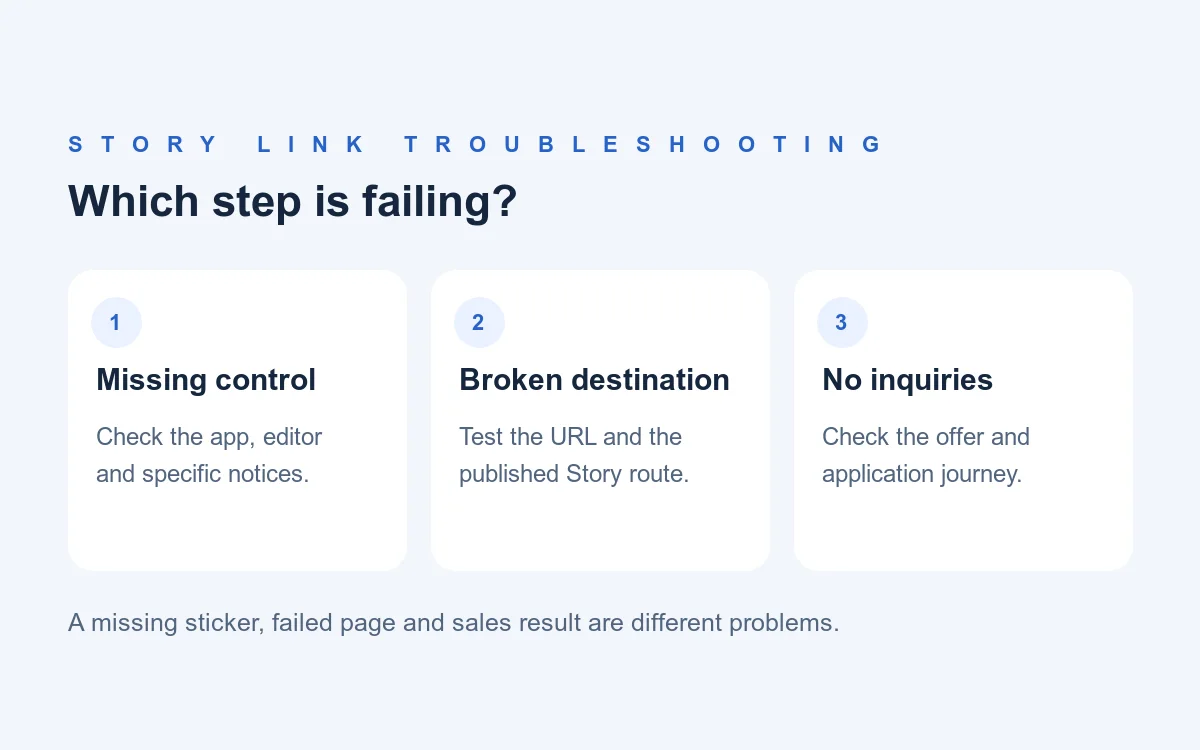
This guide separates three problems: the Link control is missing, the destination fails, or the route works but does not create inquiries. The test plan and examples below are practical recommendations, not a list of causes confirmed by Meta for your account.
Is the sticker missing, or is the Story link not working?
Start by identifying the failed step. “My link is broken” can mean several different things, and each needs a different check.
| What you observe | First check | What it does not prove |
|---|---|---|
| No Link option in the Story editor | Native mobile app, update, specific restriction notice | Your account is banned or needs more followers |
| Link appears but cannot be added | Exact error and the exact URL entered | Every link is blocked |
| Published sticker is visible, but the page fails | Destination directly, then the viewer's Story route | Sticker eligibility is the cause |
| Page opens correctly, but nobody applies | Offer clarity and the application experience | Instagram removed the Link feature |
For example, a coach may say, “Instagram won't let people apply,” when the application opens but requires a login the prospect does not have. That is a destination problem. Reinstalling Instagram will not fix the application permissions.
Do not change the app, account type, URL and application settings together. Change one thing, repeat the same test and record what changed. Otherwise you may restore the route without learning which part failed.
What should you check when the Link sticker is missing?
Use the native Instagram mobile app as your baseline, then check app version and account-specific notices. A scheduler or another publishing interface is a separate test surface.
1. Confirm the account and editor
Make sure you are using the coaching account you intended to publish from and creating a Story, not troubleshooting a different content format. Open its sticker controls and look for Link.
Instagram's current Story-sharing help directs readers to mobile-device instructions. Start there rather than assuming a computer or third-party scheduler exposes the same controls. A tool's missing option does not establish that the native account lacks it.
Keep a screenshot of the editor you actually checked. “Not available in our scheduler” and “not available in the Instagram phone app” are useful, different observations.
2. Update before making invasive changes
Instagram recommends using the latest app version when certain stickers are missing. Update through the official app store, reopen Instagram and check the same account and Story editor again.
An update is a supported first check, not a guaranteed repair. Avoid jumping straight to deleting drafts, clearing app data, reinstalling or disconnecting integrations. Preserve anything you need, and confirm that you can regain account access before a step that signs you out or removes local content.
3. Read the restriction, not just the status color
Instagram's Account Status documentation distinguishes removed content, Features you can't use, and available review actions. Inspect the specific finding and follow the action shown if it applies.
A recommendation-eligibility issue and a feature restriction are different findings. A reassuring recommendation status is not proof every feature is available; an unavailable sticker is not proof your content has stopped being recommended.
If the actual problem is a recommendation notice, use our recommendation-eligibility guide. If Instagram displays an automated-behavior warning, use the separate warning response plan. Do not diagnose either from the missing sticker alone.
4. Treat availability notes carefully
Instagram's sticker help says availability varies and includes a general regional notice. It does not establish that every Link-sticker failure in a named country has that cause. Do not turn a broad help-page notice into a definite diagnosis for your coaching account.
If there is no specific restriction and the control remains absent, record that uncertainty. You can report a reproducible problem without inventing an eligibility rule or promising a restoration date.
Do you need 10K followers for an Instagram Story link?
Do not use the old follower threshold as the requirement for diagnosing today's Link sticker. Instagram announced link sharing regardless of account size on October 27, 2021.
That historical announcement also excluded new accounts and accounts repeatedly violating its rules. It did not specify an exact new-account waiting period. Current sticker documentation still cautions that availability differs.
The defensible takeaway is narrower than “everyone is guaranteed to have Link”: follower count is not a good reason to stop the checks above. Buying followers, paying an “unlock” service or switching account type on a guess is not an evidence-based fix.
How do you test a sticker that appears but does not work?
Test the exact destination outside Instagram, then test the published Story as a viewer. The sticker editor preview alone does not test the whole application journey.
For a coaching application or resource, use this sequence:
- Copy the intended URL from its source. Compare it with the URL saved in the sticker. Include the path, not just the domain.
- Open that address directly on a phone. Check the final page after redirects, not merely whether something loads.
- Check visitor access. A public inquiry route should not depend on your admin login. Use a normal visitor session; do not enter real prospect or client information into a test.
- Test the published Story with an appropriate viewer account. Check the actual tappable sticker, destination and first action. A decorative “Apply” image is not the same as an interactive Link sticker.
- Test completion where safe. Use clearly labeled test data only when you control the destination. Check for an application confirmation or the promised resource. Do not create an appointment on somebody else's calendar to test a link.
If the address fails directly, fix the website or URL first. If it works directly but fails only through the published Story, capture that difference. It helps separate an Instagram interaction issue from a destination or in-app browser problem, without pretending the comparison proves the exact cause.
If Link is greyed out or rejects your URL before publication, record the exact message and the address you entered. A disabled control alone does not tell you whether the issue is the URL, the editor or the account. Do not invent a cause from its color.
A controlled comparison sheet
Keep the URL and test content consistent. Use only accounts and devices you are authorized to access.
| Comparison | What to record | Useful interpretation |
|---|---|---|
| Same URL: direct phone browser versus Story tap | Final page, error, login requirement | Identifies which route fails |
| Same account: native app versus publishing tool | Link control present or absent | Separates native availability from tool capability |
| Same account: two authorized devices | App versions and observed result | A device-specific difference is a clue, not proof of its cause |
| Same device: two accounts you manage | Control and exact notice | Helps isolate account-specific behavior; does not prove a ban |
You do not need every comparison to send a useful report. Stop when you have enough evidence to identify a broken destination or a repeatable issue. Avoid repeatedly publishing test Stories to your entire audience.
How should a coach keep inquiries moving while troubleshooting?
Offer one tested alternative route and keep the promise unchanged. Do not replace “read the coaching details” with an unexpected booking demand just because a link failed.
For a profile-link fallback, an example is:
Want the coaching details? Open my profile and choose “Coaching application.” The page explains the program and what happens if you apply.
Use the actual visible link label, verify the destination and avoid sending viewers to a confusing collection of unrelated links. Our profile lead-capture guide covers the surrounding profile structure.
If inbound Story replies are available, another example is:
Reply “DETAILS” if you'd like the coaching overview. We'll send the information and answer your questions before discussing the next step.
Make that promise accurate. If a setter or assistant responds, do not imply the founder personally handles every reply. If the next step involves a sales conversation, do not promise “no sales pitch” and then deliver one.
Test the reply route before relying on it. These alternatives are business-continuity choices, not methods for bypassing an explicit platform restriction. A sticker failure also does not create permission to automatically pitch every Story viewer.
Once a prospect asks for information, keep the handoff consistent with your DM sales pipeline. Intellicoach can help manage inbound conversations, qualification and follow-up; it does not unlock Instagram stickers or repair your application page.
What should you send when reporting the problem to Instagram?
Send the reproducible steps, device details, exact behavior and a relevant screenshot. Instagram's technical-problem reporting guidance recommends updating first and reporting persistent issues with details about the device and what you were doing.
Its current Android/iPhone instructions include Profile → Menu → Help → Report a Problem, followed by the choices shown in the app. Use the current controls and read any diagnostic-sharing prompt before submitting.
Copy this outline and fill it with facts:
Account affected:
Date, time and time zone:
Phone model and operating-system version:
Instagram app version:
Publishing surface: native Story editor / other tool
Expected behavior:
Actual behavior and exact error:
Steps that reproduce it:
Does the exact URL open directly on a phone?
Result from a viewer's published-Story test:
Relevant Account Status finding, if any:
Screenshot with unrelated private details removed:
Keep client DMs, health information, payment details and unrelated account data out of attached screenshots. Do not paste an access token or a private admin URL into a public troubleshooting thread. The aim is enough evidence to investigate the failure, not a dump of your coaching business's data.
No source above provides a universal restoration deadline. A report is an escalation step, not a promise that Link will return in a fixed number of hours.
What if the link works but nobody applies?
Then availability is no longer the problem you have demonstrated. Review the promise, destination and next step instead of continuing to reset the app.
Separate the outcomes:
- Story attention: someone saw the content.
- Link interaction: someone tapped a link, where your available metrics show it.
- Destination visit: the page was reached, subject to your analytics coverage.
- Inquiry or application: someone actually submitted or asked.
- Qualified conversation and client: later outcomes requiring separate evidence.
Do not assume those numbers should match, or that every visitor is a different qualified prospect. A technically working link can still lead to unclear coaching details, an unsuitable offer or an unnecessarily difficult form.
If the destination is the problem, use our high-ticket coaching application guide. For connecting sources to later sales outcomes, use the lead-source tracking guide.
The practical sequence is: identify the failed step, test it deliberately, keep one honest inquiry route open and measure what happens after the route works. That gives your team a useful next action without inventing a platform diagnosis.
Frequently asked questions
Why is my Instagram link sticker not showing?
First check the native mobile Story editor, update Instagram and review any specific feature restriction in Account Status. Instagram says sticker availability varies, so a missing Link control alone does not establish a ban or one exact cause. If the issue persists, document a reproducible test and report it through Instagram's Help controls.
Do I need 10,000 followers to add an Instagram Story link?
The old follower-threshold advice is not a sound troubleshooting requirement for the Link sticker. Instagram announced Story links regardless of account size in October 2021. That announcement included exceptions, and current sticker guidance still notes variable availability, so it is not a guarantee that every account can use every sticker.
Will switching to a business account restore the Link sticker?
Do not switch account type just to guess at a missing sticker. Instagram's link-sharing expansion was not limited to large business accounts. Check the Story editor, app version, specific restriction notices and a controlled comparison before changing a setting that can affect other tools.
Why does my Instagram Story link open the wrong page?
Compare the exact saved URL with the intended destination. Test that address directly, then from the published Story as a viewer. A wrong address, redirect or website flow can produce the wrong page even when the sticker works. Fix the destination or URL rather than treating every failure as sticker eligibility.
What can a coach use if the link sticker is unavailable?
Use a tested profile-link route with a specific label, or invite an inbound reply if replies are available. Preserve the same offer and explain what happens next. These are alternative inquiry routes, not ways to bypass an explicit account restriction.
Ready to Try Intellicoach?
Built for online coaches with real DM volume who want to automate follow-ups and qualification without losing their voice.